Skill Assessment: create questions with Question Builder and AI Import
For: admins and question authors
Availability: Skill Assessment is enabled per institute. If you do not see Skill Assessment in the side menu, contact [email protected] to enable it.
Skill Assessment questions live in their own list (Skill Questions), separate from the normal question bank. You can create them one at a time in the Question Builder, or in bulk with AI Import.
Prerequisites
- At least one Subject and Topic in Question Bank — every skill question belongs to a subject and topic.
The Skill Questions list
- Go to Skill Assessment > Question Builder.
- Pick a Subject in the filter bar (the list stays empty until you do). You can then filter by Topic, Answer format and Framework, or search by title, tag or question ID.
- Use the All / Active / Deactivated tabs to switch views. Columns include Format (question → answer), Time, Difficulty, Marks, Status and In Exam.
- Actions lets you Activate, Deactivate or Delete the selected questions. AI Import and Create sit next to it.
Create a question in the Question Builder
Click Create. The builder has three steps; each step must be valid before the next unlocks.
Step 1 — Basic Configuration
| Field | Notes |
|---|---|
| Subject, Topic, Title | Required. |
| Language | English (India), Hindi, Tamil, Telugu or Marathi. |
| Difficulty | Easy, Medium or Hard. |
| Time limit | Minutes for this question; 0 = no limit. Question time limits can roll up into the assessment duration. |
| Cognitive level | Remember, Understand, Apply, Analyze, Evaluate or Create. |
| Status | Draft, In Review, Approved, Published or Retired. |
| Tags | Comma-separated, searchable from the list. |
| Case study / background | Optional shared context the candidate reads before answering. You can also attach a PDF; the case-study text is extracted from it. |
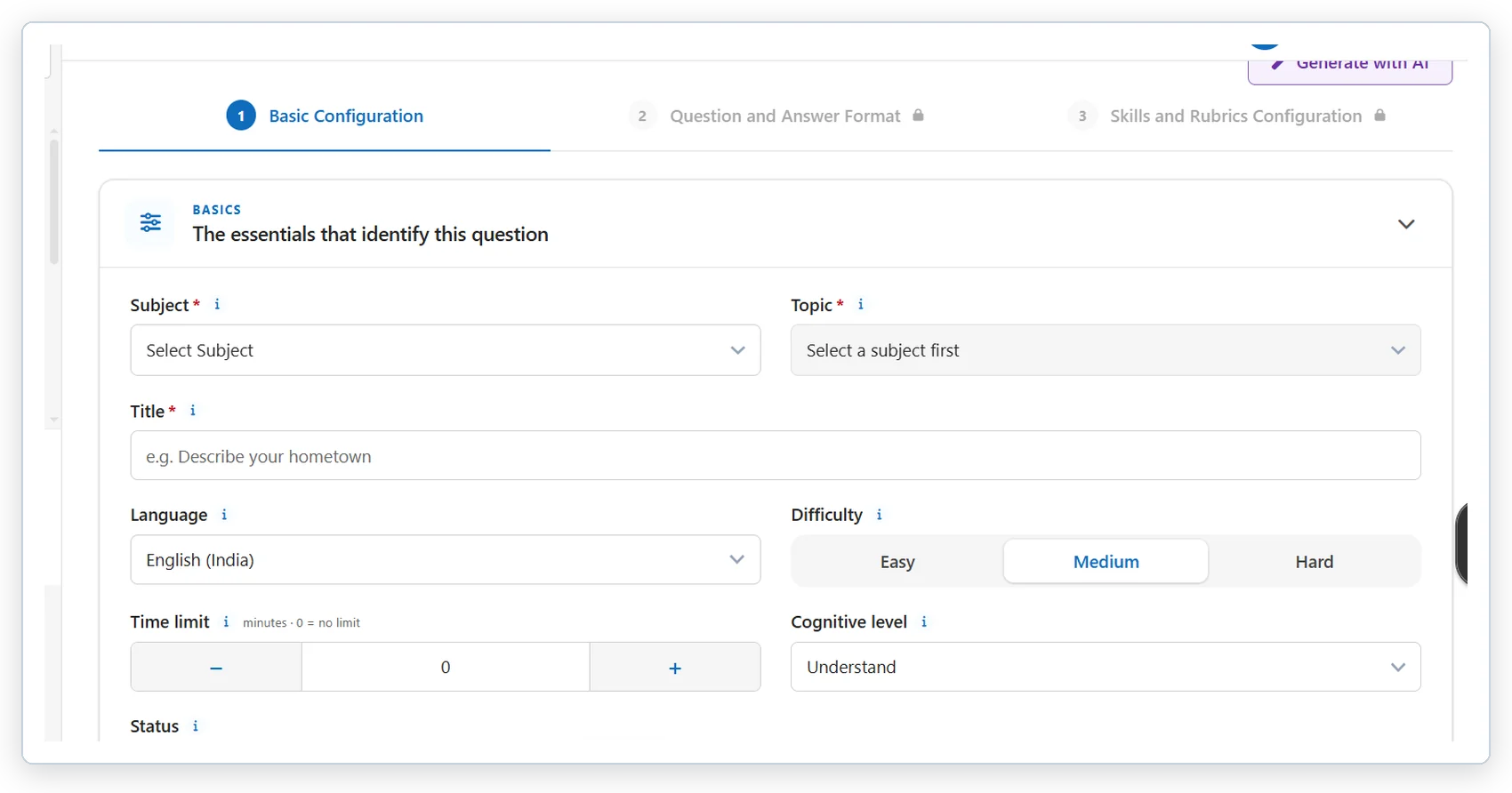
Step 1: subject, topic, title, language, difficulty, time limit and cognitive level.
Step 2 — Question and Answer Format
Question format: Text, Video, Audio or Image. For media formats, paste a URL or upload the file, and add a transcript / caption (or alt text for images). Write the question text in every case.
Answer format and its settings:
| Answer format | Settings |
|---|---|
| MCQ | Selection Single / Multiple; Shuffle options; Marking by Answer key or Option-wise marks (single selection only); marks deducted when the answer scores 0; options (each can carry an image, audio or video); optional explanation shown after submission. |
| Text | Min words, Max words, model answer / keywords. |
| Audio | Max duration (seconds), target language, speech-to-text engine, re-record allowed / not allowed. |
| Video | Max duration (seconds), re-record allowed / not allowed. |
| Conversation | Bot persona / situation, number of turns, language, avatar, voice (with a play button to preview), and the bot's initial question. |
Set Question marks (a positive whole number). For option-wise MCQ it automatically uses the highest option mark.
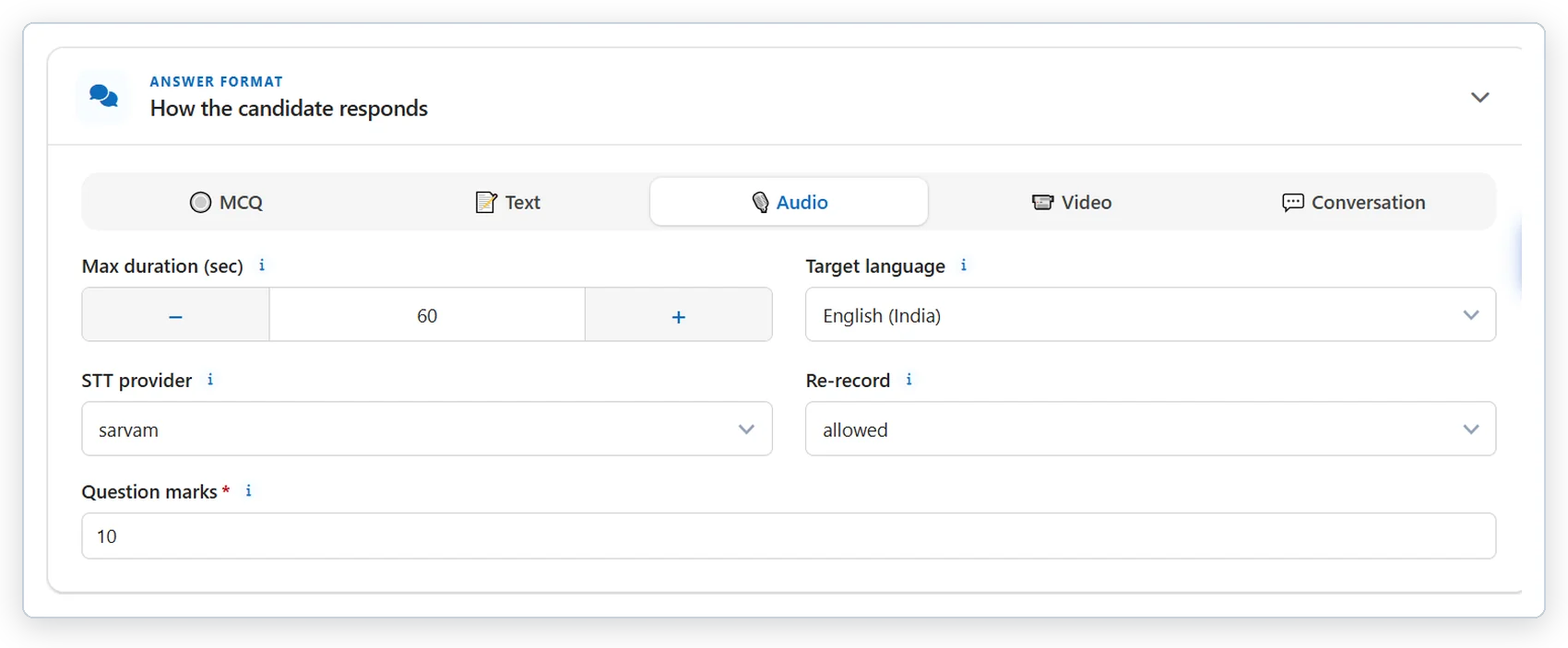
Spoken answers: target language, maximum duration and re-record rule.
Step 3 — Skills and Rubrics Configuration
- Skills: pick a skill from the list and click + Add skill, or + Create custom skill (name and domain). Give each skill a weight; every skill needs at least 1% and the weights must total exactly 100%.
- Rubrics: choose the scoring framework — CEFR, NSQF or Custom. Hover the info dot for what each framework measures. Use Seed criteria to start from suggested criteria, or + Criterion under each skill to add your own (name, description, weight). Each skill's criteria weights must total 100%.
- Click Submit (or Update when editing).
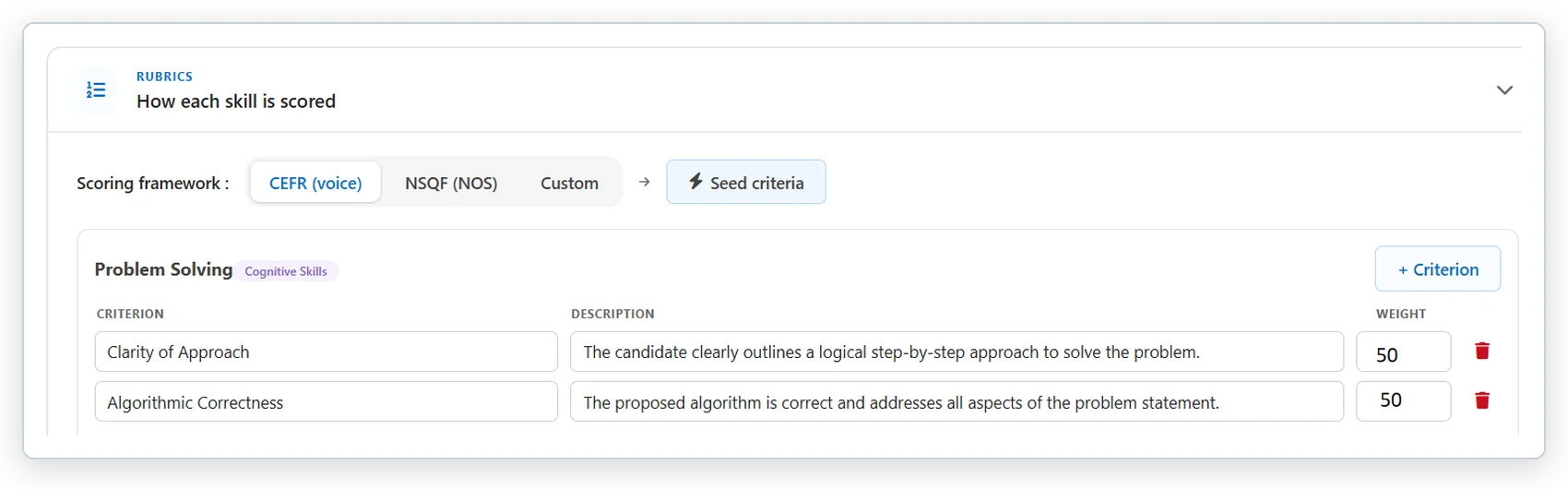
Rubrics: choose CEFR, NSQF or Custom and weight the criteria under each skill.
Generate a single question with AI
- In the Question Builder, click Generate with AI.
- Describe the role, skill or scenario (for example, "Spoken English for a call-centre role at B2").
- Click Generate draft. The builder is filled with a draft; review every step and edit before you submit.
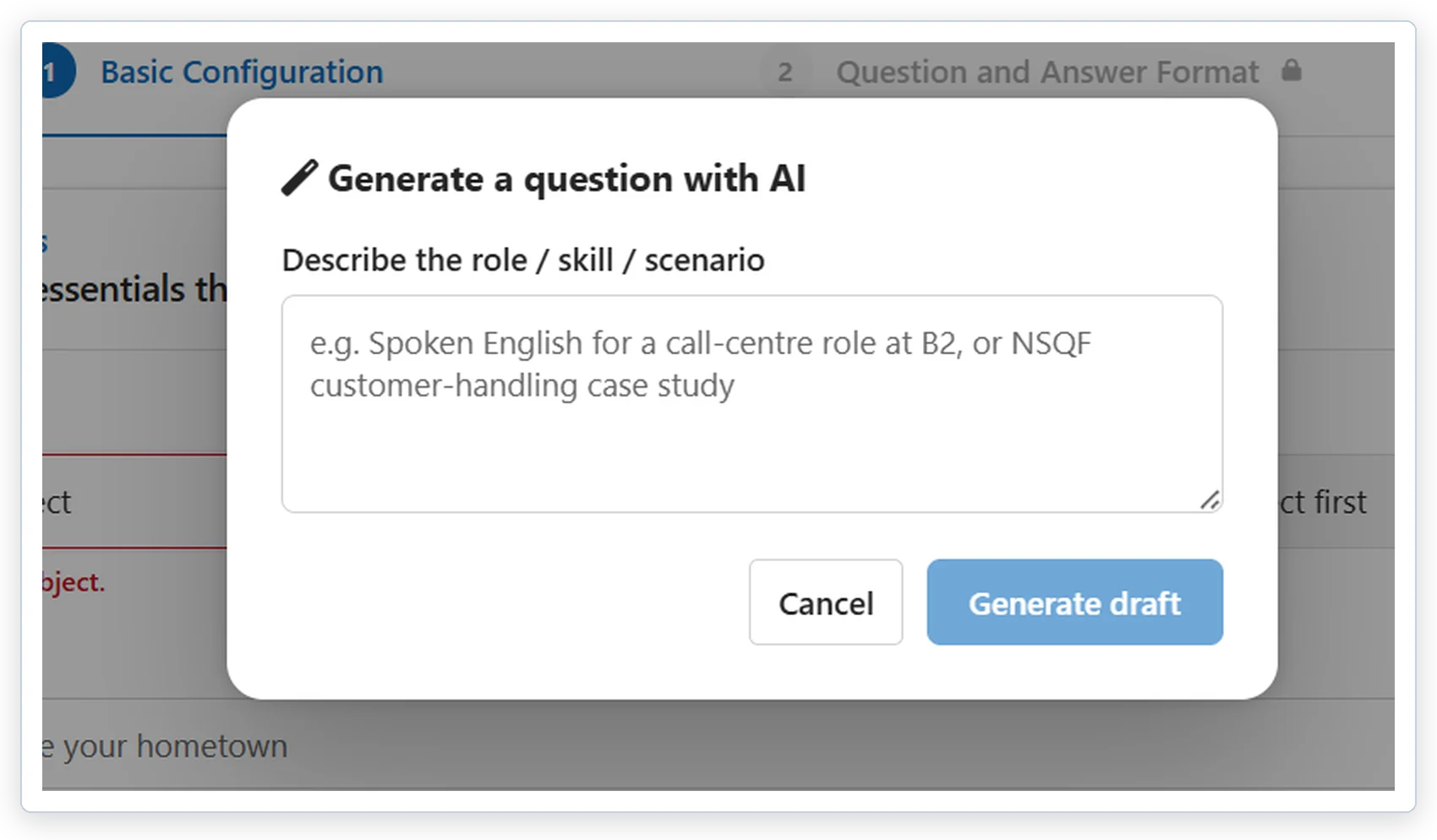
Generate with AI: describe the role or scenario and get a draft question.
Bulk import or generate with AI Import
- On the Skill Questions list, click AI Import. The wizard has three steps: Upload, Configure, Review & Import.
- Choose how the AI should work:
- Extract existing questions — pull the questions already written in a document, as they are.
- AI question generator — no file needed; describe the role, skill or scenario and the AI writes questions from your brief.
- Generate from content — use a document as source material and write new questions grounded on it.
- For the file-based modes, upload a PDF, Word (.docx) or Excel (.xlsx) file of up to 20 MB.
- Configure: for the generating modes, set how many questions, answer format (Text, Audio, Video, Conversation or Multiple Choice), difficulty, scoring framework, target level and answer settings. For all modes set the defaults applied to every imported question: subject and topic, language, marks, cognitive level, time limit (seconds, 0 = none) and extra tags. Click Run import. Reading a large document can take up to a minute.
- Review & Import: each question appears as a card with its format, framework, difficulty, marks, AI-inferred skills and rubric criteria. Click Edit to fix anything the AI got wrong, untick questions you do not want, and fix any card marked with errors (missing required information). In Extract mode, questions that carry their own subject/topic keep them; choose a default subject/topic for the rest.
- Click Import N question(s). The result screen shows how many were imported and how many could not be saved.
Important: imported questions are saved as Active and appear in the Skill Questions list straight away. Review them — and deactivate any you are not ready to use — before adding them to an assessment.
Edit, deactivate or delete
- Click the Edit icon on a row to reopen the builder. The View details (eye) icon shows the framework, tags and skills.
- Select rows and use Actions > Activate / Deactivate / Delete. The In Exam column shows whether a question is already used in an assessment.
FAQ
Why can't I click Next? A required field in the current step is missing or invalid — for example skill weights not totalling 100%, a skill with no criteria, or a media question with neither a URL nor an uploaded file.
Can I use normal question-bank questions in a Skill Assessment? No. Skill assessments draw only from the Skill Questions list.
Next: Create, configure and schedule an assessment. Background: Skill Assessment overview.
Need help? Email [email protected] with your institute name, the exam or question ID and a screenshot. You can also connect over phone or schedule a meeting.
Was this article helpful?
That’s Great!
Thank you for your feedback
Sorry! We couldn't be helpful
Thank you for your feedback
Feedback sent
We appreciate your effort and will try to fix the article