Skill Assessment: create, configure and schedule an assessment
For: admins
Availability: Skill Assessment is enabled per institute. If you do not see Skill Assessment in the side menu, contact [email protected] to enable it.
Prerequisites
- Active questions in Skill Assessment > Question Builder (see Create questions).
The Assessment Creation list
Go to Skill Assessment > Assessment Creation. Each row has icons for Details (full configuration), Config (Advanced Configuration), Schedule (Manage Schedule), Edit and Delete. Actions lets you Activate or Deactivate exams, view deactivated exams and Export. Click New to create an assessment.
Step 1 — Details
| Field | Notes |
|---|---|
| Start from an existing exam? | Yes copies all settings and questions from the exam you pick in Copy from exam. |
| Exam Name / Exam Code | Exam Name is required. |
| Primary Language | Language of delivery. |
| Conduct exam in MultiLanguage | Yes shows Secondary Language. |
| Mock Assessment | Yes shows Mock Attempts Allowed — use for practice runs. |
| Instructions | Shown to candidates. |
| Duration (minutes) | Calculated from the question time limits when you leave Question Selection, if every question has one. |
| Overall Pass % | 0–100. |
| Exam Schedule Type | Flexi Schedule, Fixed Schedule, or Flexi Schedule with Fixed Exam Time. |
| Negative Marking | Yes / No. The amount deducted is set on each question. |
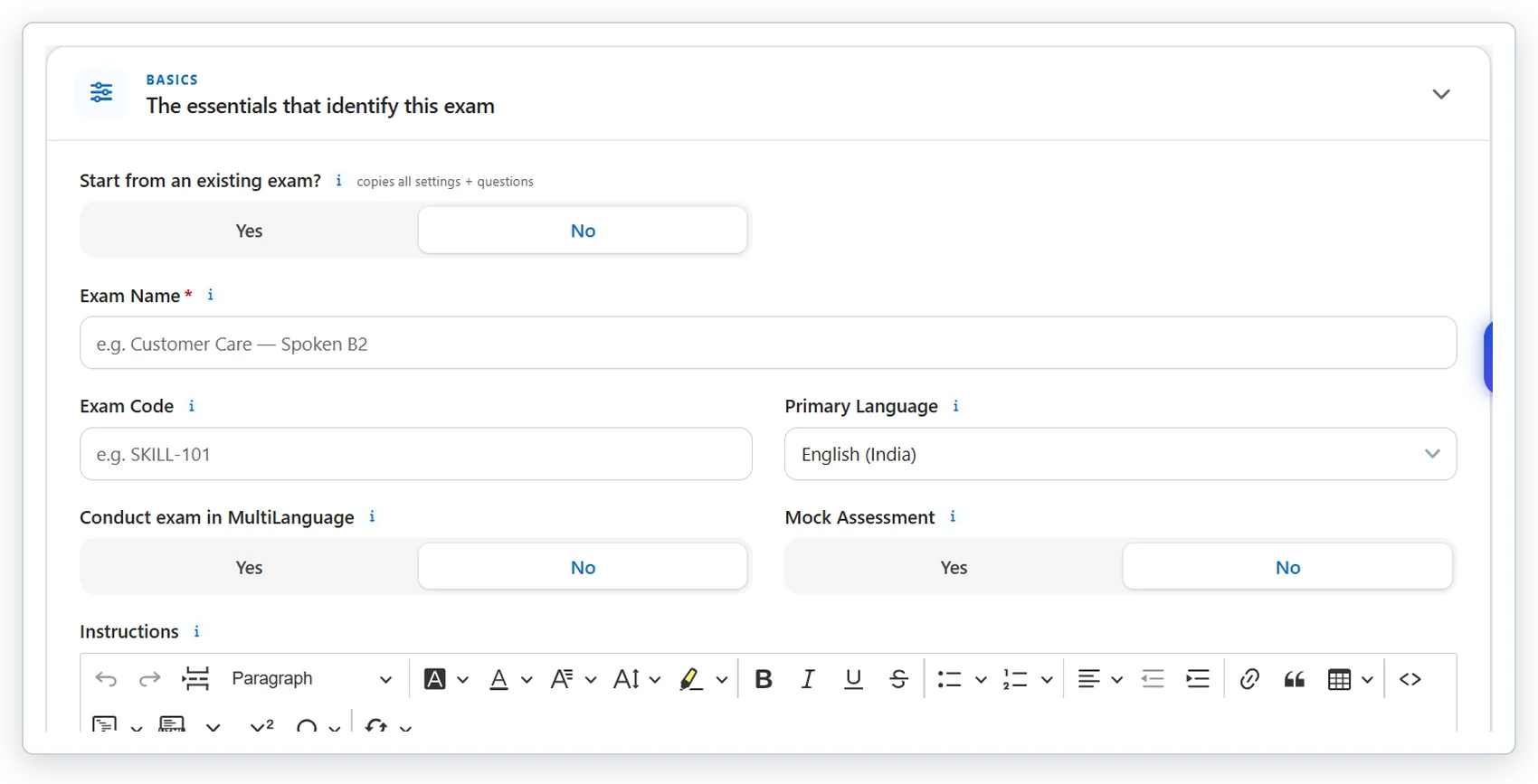
Details step: copy a previous exam, multi-language delivery and mock assessment.
Step 2 — Question Selection
Choose a Selection Mode:
- Question Wise — choose Subject, Topic, Answer Format, Difficulty Level and (optionally) Framework, click Get Questions, and tick the questions you want. They move to Selected Questions with a running count of questions and marks.
- Schema Wise — instead of fixed questions, define rules. After choosing the criteria, the system groups matching questions (by difficulty, answer format and framework) and shows how many are available, marks per question and time per question. Enter how many to include from each group (or click All), give the rule a Schema Name and click Add Schema.
Exam Structure
- Direct Question — all questions delivered as one list.
- Section-wise — click + Add section, name it, set Shuffle and Time, then add selected questions (or map schemas) to it. Choose Section-wise timer: One timer or Per section, and Section switching: Not allowed (locked in order) or Allowed. With per-section time, the assessment duration is set to the section total.
Sequence
Drag rows or use the arrows to set the order candidates see (Reset to original undoes it). Each question shows its marks and time limit; tick Compulsory for questions the candidate must answer before submitting.
Step 3 — Delivery & Security
| Setting | What it does |
|---|---|
| Randomise Questions / Shuffle Questions | Vary the question set or order per candidate. |
| Show Marks Per Question | Display each question's marks. |
| Allow Time Per Question | Enforce the per-question time limits. |
| Navigable Questions | Let candidates move freely between questions (the question palette is hidden when navigation is off). |
| Show Submit On Entire Exam | Show the Submit button throughout the exam. |
| Allow Calculator | On-screen calculator. |
| Time-remaining Popup | Warn candidates Show Popup Before N minutes. |
| AI Proctored | Proctor Mode AI proctored or AI + human; Window-switch Alerts; Image Capture with Capture Interval (seconds); Screen Recording; Video Recording. |
Step 4 — Results
Toggle Instant Score View, Allow Answer Review, Show Marks, Collect Feedback, Issue Certificate and Ranking Dashboard, then save.
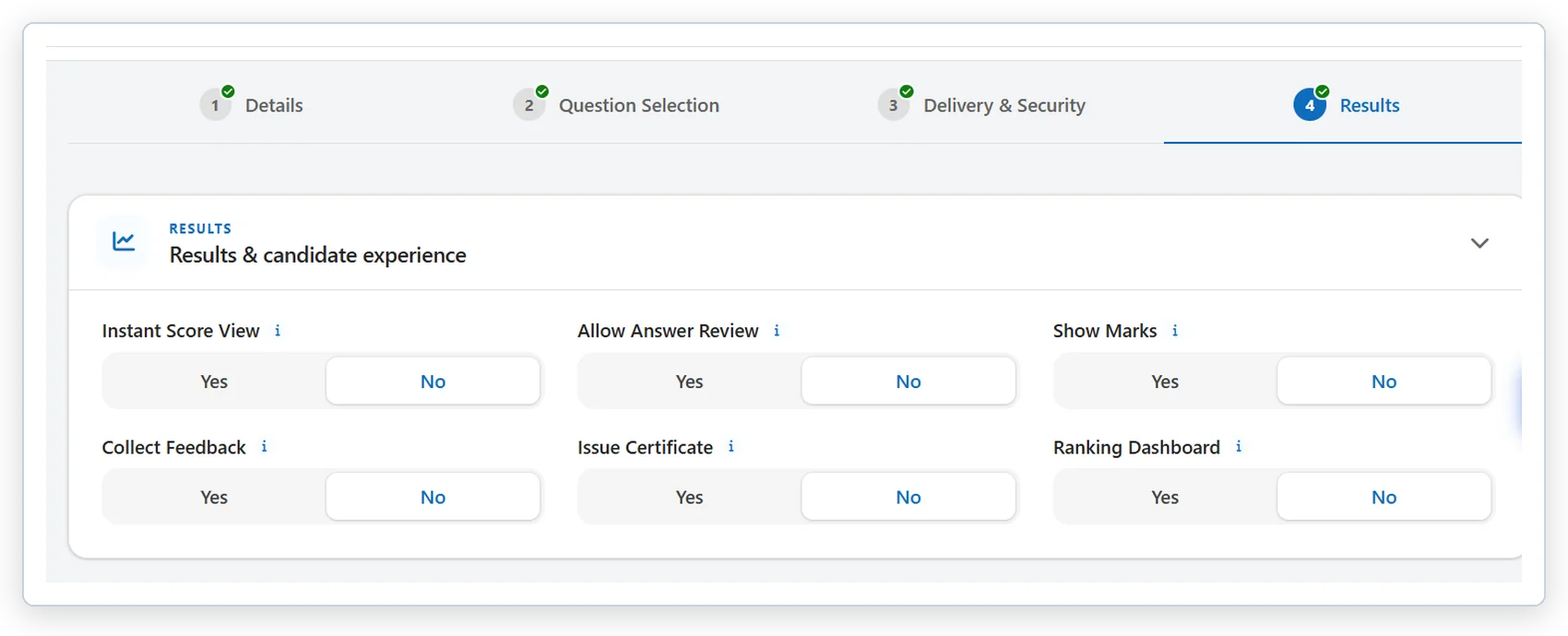
Results step: instant score, answer review, marks, feedback, certificate and ranking dashboard.
Schedule the assessment
- On the assessment row, click the Schedule icon to open Manage Schedule.
- Click New. The standard Create Schedule screen opens; set the window, time zone and authentication options and save.
- Manage Schedule lists each schedule with start, expiry, status, time zone and identity / face authentication settings. Use Actions to Export or Deactivate schedules.
Editing after candidates are assigned
- Once an assessment is assigned to a candidate, Edit and Delete are greyed out (tooltip: "Exam is assigned, cannot edit" / "cannot delete").
- You can still open Config (Advanced Configuration). It shows "Assigned — builder locked": questions and structure cannot change, but basics, delivery, proctoring and results settings can still be updated.
Candidates: share Taking a Skill Assessment (candidate guide) before the exam.
Need help? Email [email protected] with your institute name, the exam or question ID and a screenshot. You can also connect over phone or schedule a meeting.
Was this article helpful?
That’s Great!
Thank you for your feedback
Sorry! We couldn't be helpful
Thank you for your feedback
Feedback sent
We appreciate your effort and will try to fix the article